

On this page
Start here
What is RezSync Algo?Quick startSetup hub checklistQuick Setup profileHow the system thinksScreens you will seeConfiguration
cTrader connectionSubscription and AI modeExecution modesAdvanced SettingsRisk and limitsRisk sizing engineTimezone and scheduleNotificationsBroker symbolsRezSync Algo documentation
A practical manual for setting up and operating the downloadable cTrader AI trading assistant. The goal is not to make trading look easy. The goal is to make every control, gate, log, and risk boundary understandable before money is involved.
Trading risk
What is RezSync Algo?
RezSync Algo is a downloadable AI-assisted trading application for cTrader. It connects broker account context, market sessions, symbol constraints, risk settings, economic events, and an AI decision layer. It can produce review-only signals, send demo broker orders, or, only after explicit setup, send live broker orders.
The product is not a hard-coded guaranteed-profit strategy. The useful edge it tries to protect is disciplined decision quality: trade only when context, risk/reward, confidence, market state, and account limits line up. A skipped trade is often the correct output.
Quick start
- 1Download RezSync Algo from the Algo product page.
- 2Launch the app and complete the setup hub.
- 3Connect a cTrader demo account before considering live mode.
- 4Choose Managed RezSyncIQ or bring your own model provider.
- 5Select symbols from the broker-backed symbol list and verify them.
- 6Keep execution in Review only or Demo broker orders until you understand the logs.
Setup hub checklist
The Setup hub is the onboarding source of truth. Do not skip items because each one removes a different class of failure: account authorization, broker authorization, symbol mismatch, missing subscription, missing AI provider, or unclear risk.
Connect RezSync account
Why it matters: Authorizes this machine and links the desktop app to your RezSync account.
What to do: Use the device-code flow, open the approval URL, then return to the app after approval.
Broker access
Why it matters: Confirms cTrader authorization through the RezSync API or direct OAuth path.
What to do: Choose demo or live environment, open the broker authorization URL, paste the code if requested, then select the trading account.
Choose trading profile
Why it matters: Creates the named profile that stores environment and symbol choices.
What to do: Give the profile a name, confirm the cTrader account, pick environment, and choose symbols from the broker list.
Subscription plan
Why it matters: Selects BYOM or a managed RezSyncIQ plan so the app knows how AI decisions are funded.
What to do: Pick the plan, continue checkout if needed, then refresh entitlement in the app.
Verify broker symbols
Why it matters: Prevents trading symbols this cTrader account cannot price or size safely.
What to do: Run verification after saving symbols, and re-run it after changing broker accounts or symbols.
Model provider and risk
Why it matters: BYOM users must configure provider details. Managed users still choose risk and execution behavior.
What to do: Open Advanced Settings, test provider where shown, review risk, schedule, notifications, and execution mode.
Quick Setup profile
Quick Setup creates or edits the trading profile. Keep it boring and explicit: the profile name should tell you whether it is demo or live, and symbols should come from the broker picker whenever possible.
| Field | How to use it |
|---|---|
| Profile name | A local label such as default, demo-test, or live-main. Use names that make the account/environment obvious. |
| cTrader account | The broker account identity tied to authorization. Some account fields are locked for safety after connection. |
| Environment | Demo or live. Demo is the recommended first path. Live does not automatically arm live execution. |
| Symbols | The tradable universe. Pick from broker whenever possible instead of typing from memory. |
| Live orders | A safety toggle in onboarding. If touched, the app still forces review-only execution until Advanced Settings explicitly arms the correct mode. |
Profile changes can invalidate verification
How the system thinks
Broker state
Account type, balance, symbols, open positions, spreads, and sizing constraints.
Market state
Session, symbol open/close, rollover windows, weekend rules, and economic-event timing.
AI decision
Buy, sell, hold, confidence, reasoning, invalidation, stop loss, take profit, and risk/reward.
Risk gate
Daily trade caps, per-account caps, open-position caps, daily loss limits, and execution mode.
Screens you will see
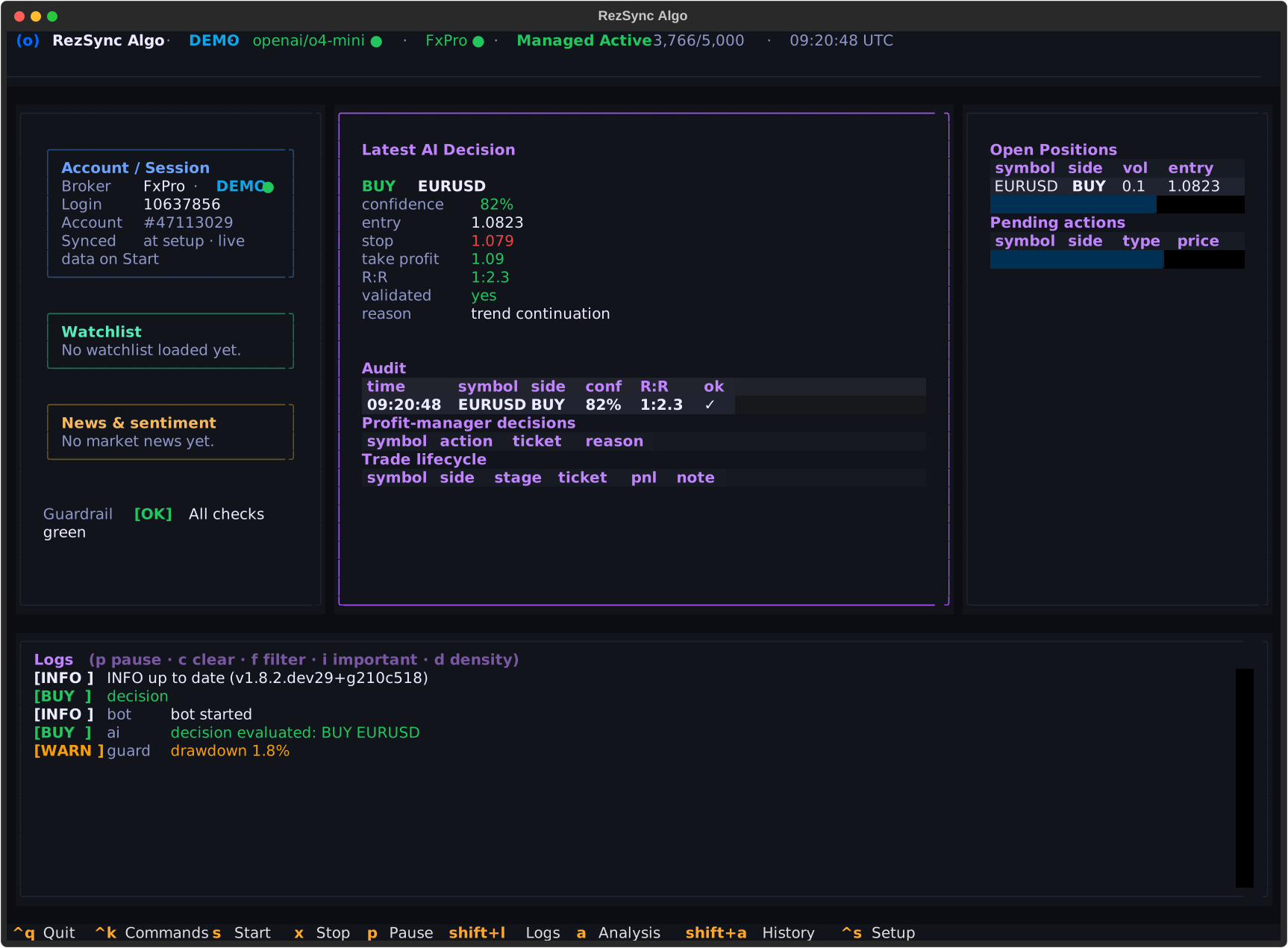
Shows account state, environment, broker status, decisions, positions, logs, and setup prompts.
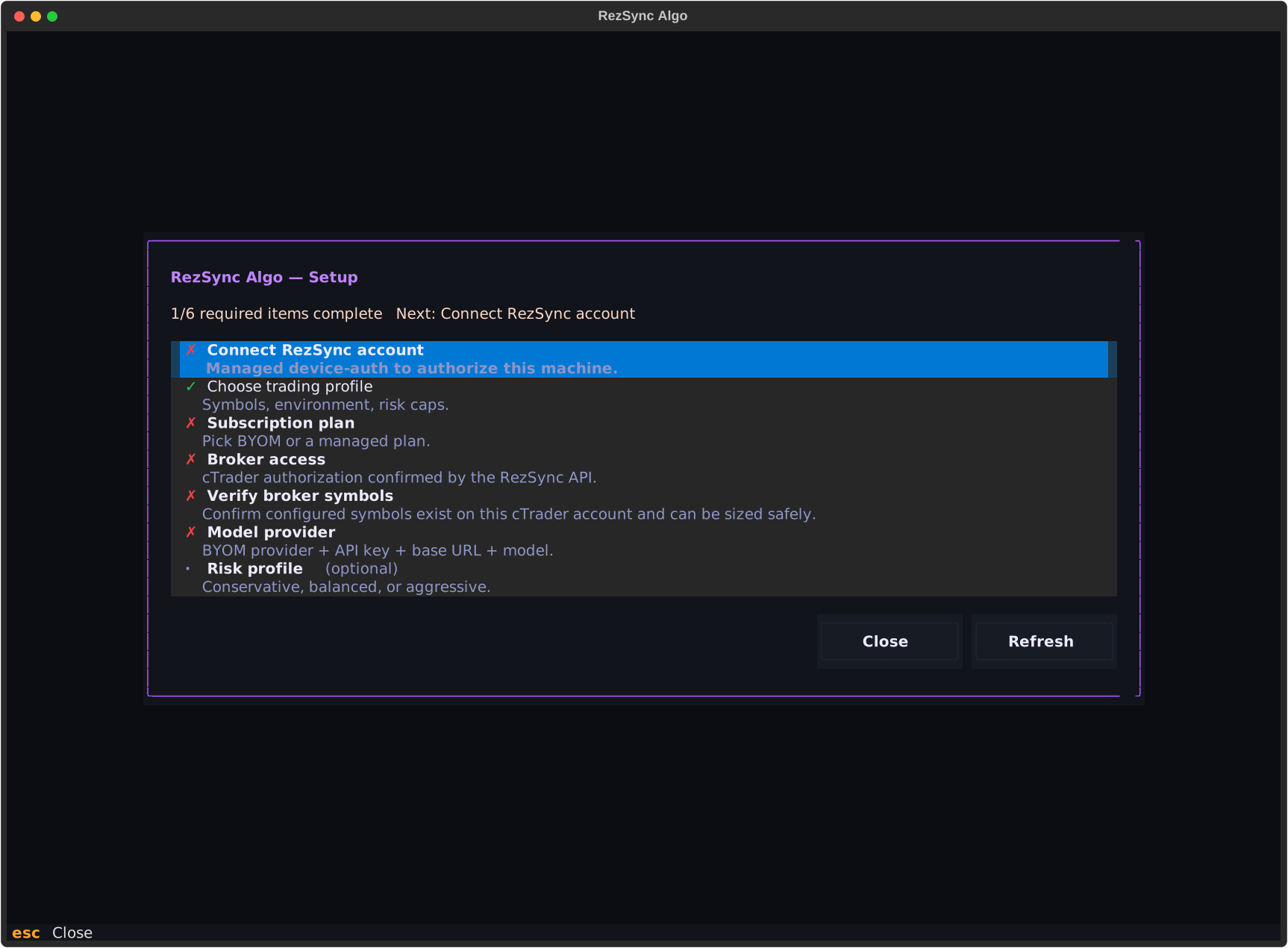
The checklist for profile, subscription, AI, broker, symbols, and readiness.
Where execution mode, risk profile, timezone, schedule, sessions, and notifications are reviewed.
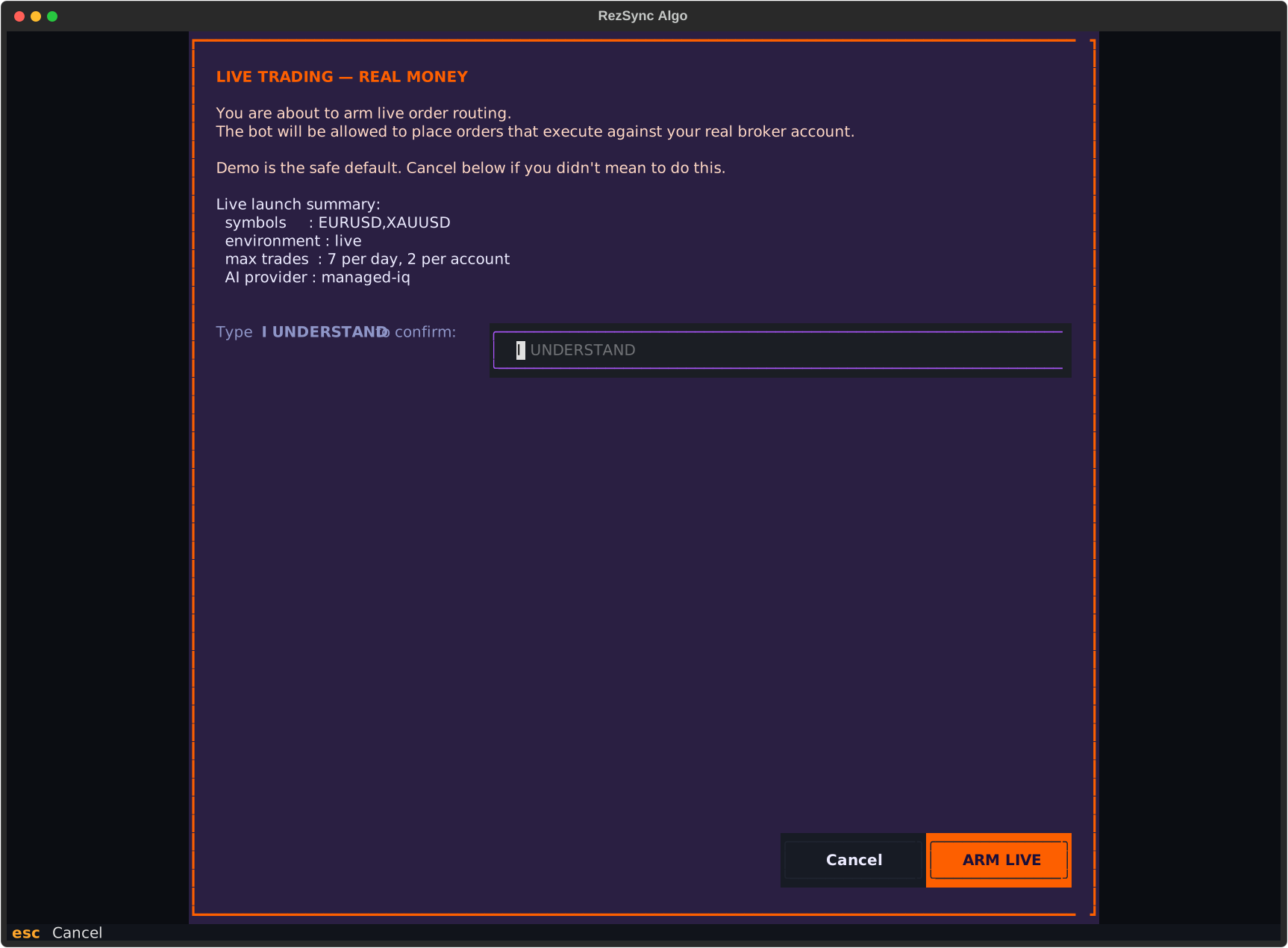
Live execution is deliberately gated. Demo is the intended first operating path.
cTrader connection
RezSync Algo is built around cTrader. The first setup path connects a cTrader account through the RezSync-managed OAuth flow or direct broker credentials where supported. The connected environment matters: demo accounts can place demo orders; live accounts are treated separately and require live confirmation.
Do not reuse assumptions after changing accounts
Subscription and AI mode
RezSync Algo separates the trading engine from the AI hosting path. BYOM users configure their own AI provider, API key, model, base URL, and JSON behavior. Managed RezSyncIQ users use a RezSync-hosted decision path with usage controlled by their subscription.
Bring your own model
You own provider setup and keys. Use Advanced Settings to set provider, API format, base URL, model, token budget, and temperature.
Managed RezSyncIQ
RezSync hosts the decision layer. You still control broker setup, execution mode, symbols, schedule, and risk limits.
Execution modes
Execution mode decides what happens after the AI produces a valid decision. It does not change market risk, symbol availability, or the need to verify broker setup.
| Mode | Saved value | What it does | Best for |
|---|---|---|---|
| Review only | signal_only | AI decisions become signals and alerts. No broker orders are placed. | First setup, model testing, broker verification, and learning how decisions are logged. |
| Demo account orders | demo_orders | Orders can be sent to the connected cTrader demo account. | Forward testing execution behavior without real-money exposure. |
| Live account orders | live_orders | Orders can be sent to the connected cTrader live account after live confirmation. | Experienced users who have reviewed demo performance, logs, risk settings, and broker behavior. |
Advanced Settings reference
Advanced Settings is where the serious controls live. BYOM users see AI provider fields. Managed RezSyncIQ users do not need provider keys, but still use this screen for execution, risk, schedule, sessions, and notifications.
BYOM AI provider
Risk and limits
Trading schedule
Notifications
Risk and limits
Risk settings are not cosmetic. They define how much room the engine has to act after the AI decision is produced.
| Profile | Max risk/trade | Max drawdown | Min confidence | Min R:R | Max positions | Personality |
|---|---|---|---|---|---|---|
| Conservative | 1.0% | 8% | 70% | 2.5:1 | 5 | Capital-preserving and picky. |
| Balanced | 1.5% | 15% | 60% | 2.0:1 | 8 | Default profile for normal testing. |
| Aggressive | 2.5% | 25% | 55% | 1.8:1 | 12 | More trades and larger swings. |
| Scalper | 0.5% | 12% | 50% | 1.5:1 | 20 | Many small, fast trades; still risk capped. |
Profile numbers are guardrails, not promises
Risk sizing engine
RezSync Algo should be risk-first, not lot-first. The AI can propose the trade idea and the technical levels, but the final executable size is calculated by the engine from the selected risk profile, real account state, stop distance, and broker symbol metadata.
AI chooses the trade idea
The model proposes direction, entry, stop loss, take profit, confidence, and reasoning from the current symbol context.
The engine sizes the order
Position size is calculated from the active risk profile and live account/broker metadata. The app does not use a fixed lot size as the edge.
Per-symbol value, risk as the constant
A 0.5 move in gold is not worth a 0.5 move in EURUSD. The engine converts your risk budget into lots using each symbol's own price unit and money-per-point from the broker, so the dollar risk is the same across instruments even when the lot sizes are very different.
Risk and reward follow your profile
The minimum risk/reward, per-trade risk, and profit-management thresholds all derive from the selected risk appetite (Conservative, Moderate, Aggressive, Scalper). Nothing is a hardcoded 2:1 ratio — change the profile and the whole engine retunes.
Small-account elasticity
When an account is small enough that even the broker's minimum lot would exceed the normal per-trade risk, a bounded, profile-derived allowance lets a high-confidence setup still place the minimum lot — capped so the risk stays small. It is never an account-size bucket or an arbitrary multiplier.
Account data must be real
If balance/equity, leverage, symbol metadata, tick value, contract size, or volume step cannot be loaded, the engine should fail closed instead of assuming a placeholder account.
Broker constraints still apply
Minimum volume, volume step, maximum broker volume, spread, and stop-distance rules can reduce or reject a trade if the executable order would break the risk boundary.
Why there is no default account fallback
What a very small account can actually trade
Timezone and trading schedule
The selected timezone controls the local days you allow RezSync to open new trades. Internally, the app converts current UTC time into your selected timezone, then checks your selected local day. The saved hour window is 0 to 23, meaning the full selected local day.
Market sessions, broker rollovers, symbol market open/close, and economic-event timing stay automatic and UTC/DST-aware. This avoids shifting real market clocks just because the user lives in a different timezone.
Why market hours are not manually edited
Notifications
Notifications are for awareness, not proof that a trade was safe. Use them to notice signals, fills, closes, and guardrail errors, then check logs or the dashboard for the full context.
Email is deliberately lean and event-driven, so it stays useful instead of becoming noise: the algo starting and stopping (with a session summary), each trade opened and closed (with its outcome), and critical algo-only alerts such as a lost connection. It does not email a periodic digest, and it does not duplicate account-status alerts — margin, drawdown, and stop-out emails are sent by your broker, so the app stays out of the way rather than sending the same warning twice.
Email alerts
Set the recipient and leave it blank if you want email off. Volume stays low by design — lifecycle and per-trade events only.
Sound cues
Useful on a desktop or SSH session. A terminal bell can be used when audio is unavailable.
Sound pack
Use the default pack or drop custom files into a local pack folder.
Event toggles
Signal, fill, close, and error sounds can be enabled independently.
Broker symbol verification
Broker symbol verification checks that configured symbols exist on the connected cTrader account and can be sized safely. This matters because the same common symbol, such as XAUUSD or EURUSD, can be exposed differently by different brokers or account types.
- Open Quick Setup.
- Pick symbols from the broker-backed symbol list, not memory.
- Save the setup.
- Run Verify broker symbols.
- If any symbol is blocked, remove it or pick the broker-supported version.
Dashboard
The dashboard is the operating surface. It shows environment, account state, setup readiness, recent decisions, positions, broker connectivity, and logs. Treat warning states as real blockers, especially around broker connection, subscription, symbol verification, and execution mode.
Decisions, expectancy, and the edge
Win rate is not the edge by itself. RezSync Algo is designed around expectancy-aware decision quality: risk only matters when the potential reward, confidence, invalidation, symbol conditions, and account limits make sense together.
Backtesting is limited when AI uses current available information, broker state, live spread, current news, and runtime context. The most honest evaluation path is structured forward testing: run in Review only, then demo orders, then inspect decision logs before considering live execution.
News and market context
News and economic calendar data are normalized to UTC for timing. The AI may receive compact context about upcoming events, high-impact windows, and recent market sentiment, but the engine should not invent news or trade if the data needed for a decision is missing.
Logs and evidence
Logs are how you audit the system. They are also what support needs when something feels wrong. Do not rely only on what you remember seeing in the terminal.
Structured decisions
One JSON record per decision, useful for review and analysis.
Human terminal log
Readable runtime log for setup, connectivity, errors, and state transitions.
AI category log
AI-specific events and decision-layer output where enabled.
{
  "symbol": "EURUSD",
  "action": "hold",
  "confidence": 0.61,
  "execution_blocked": true,
  "reasoning": "Risk/reward and session context did not meet threshold"
}
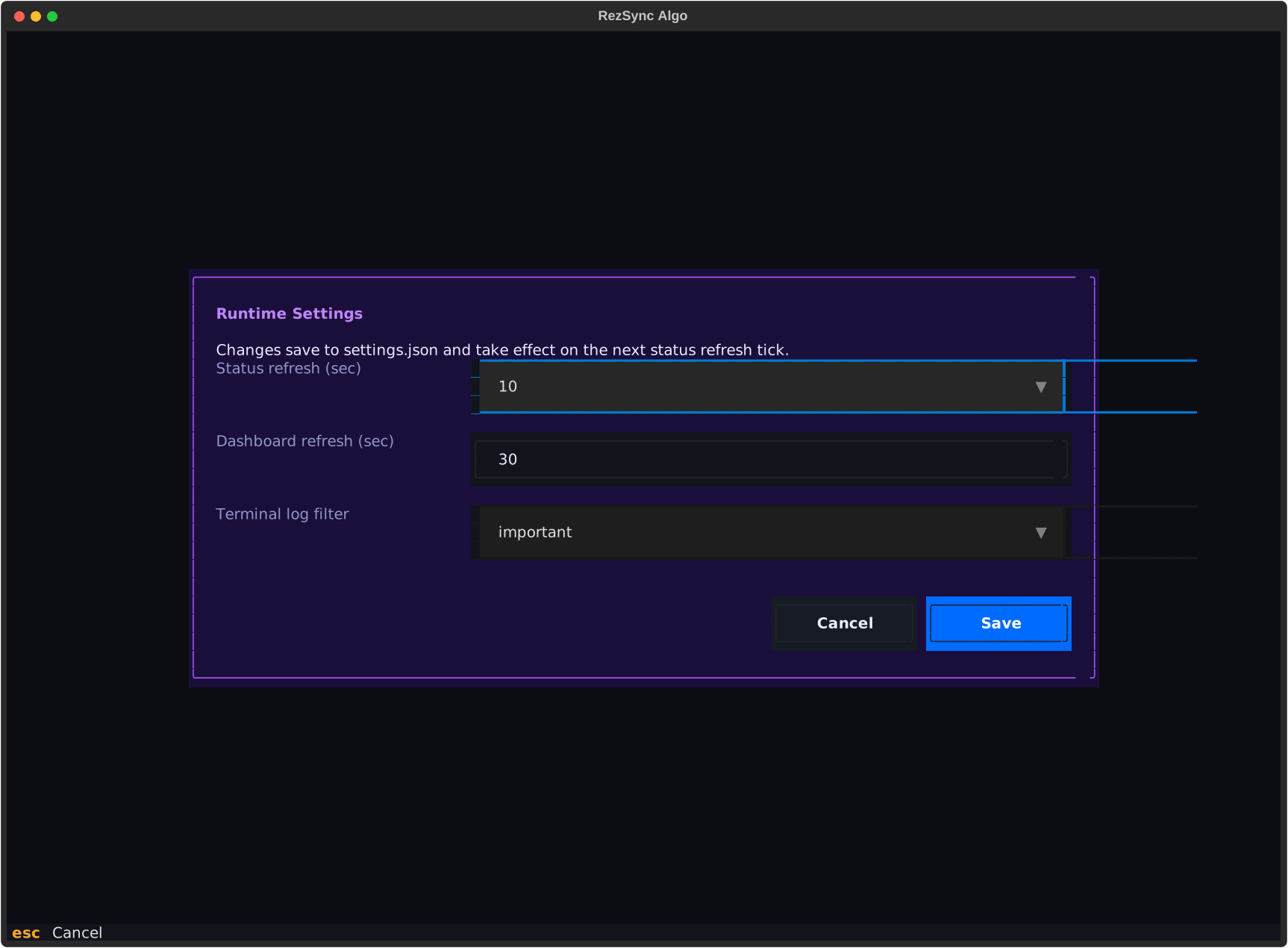
Runtime Settings
Runtime Settings are smaller operational preferences, not the trading model itself. Use them to control dashboard refresh cadence and what the terminal log view emphasizes while the engine runs.
Status refresh
How often the top-level status view updates.
Dashboard refresh
How often dashboard panels refresh account, decision, and position information.
Terminal log filter
Narrows the visible log stream so you can focus on all logs, AI, broker, errors, or other categories supported by the app.
Background operation
RezSync Algo can keep the trading engine running after the dashboard is closed, but it should never feel hidden. Every background path uses the same headless trading-engine mode as the dashboard, writes status to disk, and can be stopped by the operator.
Dashboard controlled
The dashboard controls the same background trading engine used by the tray and command controls. Closing the dashboard closes only the UI; Stop is the explicit action that ends management.
Command controlled
`rezsync background start`, `status`, `stop`, `restart`, and `paths` let power users run the trading engine without keeping the dashboard open.
Windows tray
The optional tray companion can start on login and provides Start, Stop, Open dashboard, Open logs, and Quit tray. Quitting the tray leaves the trading engine running unless you explicitly stop it.
Linux systemd
The Debian package runs one background engine under systemd. Opening the TUI attaches to its live status, logs, positions, and decision history instead of creating another trading session.
macOS launchd
The launch agent template runs the RezSync trading engine at login without opening the dashboard. Its path may need adjustment for Intel or manual installs.
Do not run blind
rezsync background start
rezsync background status
rezsync background stop
rezsync background paths
Local files and saved evidence
RezSync stores generated trading evidence locally so a restart does not erase context. Broker open positions and pending orders still come from cTrader, but market theses, profit-manager decisions, lifecycle events, schedules, and logs can be retained on the machine.
settings.jsonSaved configuration, active profile-derived settings, execution mode, schedule, notifications, update preferences, and risk profile.operator_status.jsonA live heartbeat with account, broker, mode, session, and runtime status. Used by background wrappers and support diagnostics.decision_history/*.jsonlDaily market-thesis and AI decision history that the dashboard can reload after restart.panel_history/profit_decision/*.jsonlProfit-manager actions and skipped actions, including the reason shown in the dashboard table.panel_history/trade_lifecycle/*.jsonlTrade opened, modified, partial-closed, closed, or failed events retained for audit.trade_rationale/Full rationale files and active-trade context used to explain a decision after the fact.smart_schedules/Deferred re-checks, price triggers, cycle state, and monitoring schedules.logs/ and background-bot.logHuman-readable runtime logs, expanded logs evidence, and detached background process output.cache/updates/Downloaded update artifacts and update metadata before installation.Clear app state versus clear logs
Profit management
Profit management exists to defend open trades after entry. It should not use one hard-coded pip threshold across every market. EURUSD, XAUUSD, indices, and crypto do not share the same tick value, volatility, or broker contract terms.
TP-progress based
Protection decisions look at how far price has travelled from entry toward the planned take-profit, not a universal 10, 20, or 50 pip rule.
Risk-profile aware
The profile controls how quickly the system should defend profit, trail, or allow room. Conservative behavior should protect earlier than aggressive behavior.
Symbol agnostic
Forex, metals, indices, and crypto have different tick sizes and contract values. Profit logic must normalize by the trade's own entry, SL, TP, and broker metadata.
No worse protection
A stop-loss change should not move protection in the wrong direction. If a proposed SL is worse for the position, it is skipped and logged.
Over-budget repair picks the cheapest fix
If a position's risk drifts above budget, the manager prefers the lowest-cost action first: lock a winner to breakeven (free), narrow the stop while keeping room, or reduce size — tightening the stop only as a last resort. It never strangles the stop against entry into market noise.
What users should watch in logs
Updates and release notes
RezSync Algo checks the RezSync update manifest for the current platform. When a newer version exists, the update screen shows the current version, latest version, release name, release notes, install safety status, and download action. When automatic download is enabled, the header can show downloading or ready state before the user opens the update screen.
Release notes
Generated during the release process and stored in the update manifest. They should be visible before a user downloads or installs an update.
Install safety
A running Debian engine first blocks new broker placements, then reports fresh exposure with zero managed and broker positions and zero pending broker orders. Otherwise installation is deferred. Missing exposure data fails closed.
Platform ownership
Windows uses its installer; Debian queues a privileged systemd/dpkg update; RezSync-owned macOS/Linux archives replace atomically and relaunch when a matching platform manifest is published; Homebrew-owned binaries stay under Homebrew control.
Integrity
Each release manifest includes hash metadata, and the website links SHA256 checksums so users can verify downloads.
Session continuity
Updates preserve settings and history and stop only the canonical background engine. Debian verifies the replacement heartbeat; direct archive installs relaunch the TUI against the same persisted operational record. If a platform manifest is unavailable, the app keeps installation explicit instead of guessing at another platform's artifact.
First Debian bootstrap
A package older than the system updater cannot install updater code it does not yet have. Stop that older engine for one normal package upgrade; the installed timer handles later releases automatically.
Video guides
The written docs are the canonical source. Videos should be short walkthroughs that point back to these anchors, use demo accounts only, hide account IDs and device codes, and avoid profit claims.
Demo to live
Live mode is intentionally slower to enable. A user should first confirm that setup is complete, symbols verify, demo execution behaves as expected, logs are understood, and risk settings match the account size and tolerance.
Live execution checklist
Common issues
RezSync says the market session is closed.
Check selected trading days, enabled sessions, weekend trading, and whether the symbol market is actually open.
Broker symbols are blocked.
Open Quick Setup, pick symbols from the broker-backed list for the current account, save, then run Verify broker symbols again.
Changing timezone did not move London or New York sessions.
That is expected. The user timezone controls your local day selection. Market sessions stay UTC/DST-aware.
AI returns hold or skips many trades.
That is not automatically a bug. RezSync is meant to reject weak setups, missing context, stale data, or invalid risk/reward.
Live orders are not available.
Confirm the connected cTrader environment is live, subscription is active, live confirmation passed, and execution mode is set to live orders.
News looks different from my local time.
Economic events are normalized to UTC internally so event ordering and market checks stay consistent.
Advanced Settings says full local day, but saved hours are 0 and 23.
That is expected. The engine converts UTC into your selected timezone first, then applies 0-23 as the full selected local day.
The provider test fails in BYOM mode.
Check provider, API key, base URL, API format, model name, and whether that provider supports the selected JSON behavior.
Claude/Anthropic BYOM test passes, but live analysis returns a response_format error.
Update to the latest RezSync Algo build. Claude should use provider openai-compatible, API format Chat Completions, Base URL https://api.anthropic.com/v1, and a Claude model id. Current builds avoid sending OpenAI-only response_format payloads to Claude and validate the returned JSON inside RezSync.
Sound or email alerts do not fire.
Check notification enablement, recipient email, event-specific sound toggles, volume, and minimum interval between sounds.
A trade size looks different from the AI note.
The AI proposes levels and context; the deterministic risk gate sizes the executable order from account balance/equity, risk profile, stop distance, and broker volume rules.
The app refuses to analyze or trade because account data is missing.
That is expected safety behavior. RezSync Algo should not assume a fallback balance or placeholder broker contract when real account and symbol metadata are unavailable.
An update is available but the install button is hidden.
Install ownership decides the action. Debian shows Queue safe update when its system helper is installed; Homebrew updates through the RezSync formula; a RezSync-owned archive can update in place when there are no open positions or pending orders.
A Debian update says a user-owned engine is running.
The machine updater will not replace the shared binary underneath a separate systemctl --user session. Stop that user service, request the update again, then restart it. For unattended servers, use the packaged machine service so future updates can quiesce and restart it automatically.
Glossary
Support checklist
When contacting support, include the product, operating system, account environment, execution mode, symbol, timezone, recent log excerpt, and what you expected to happen. For broker issues, mention whether you changed accounts or symbols recently.
Contact RezSync